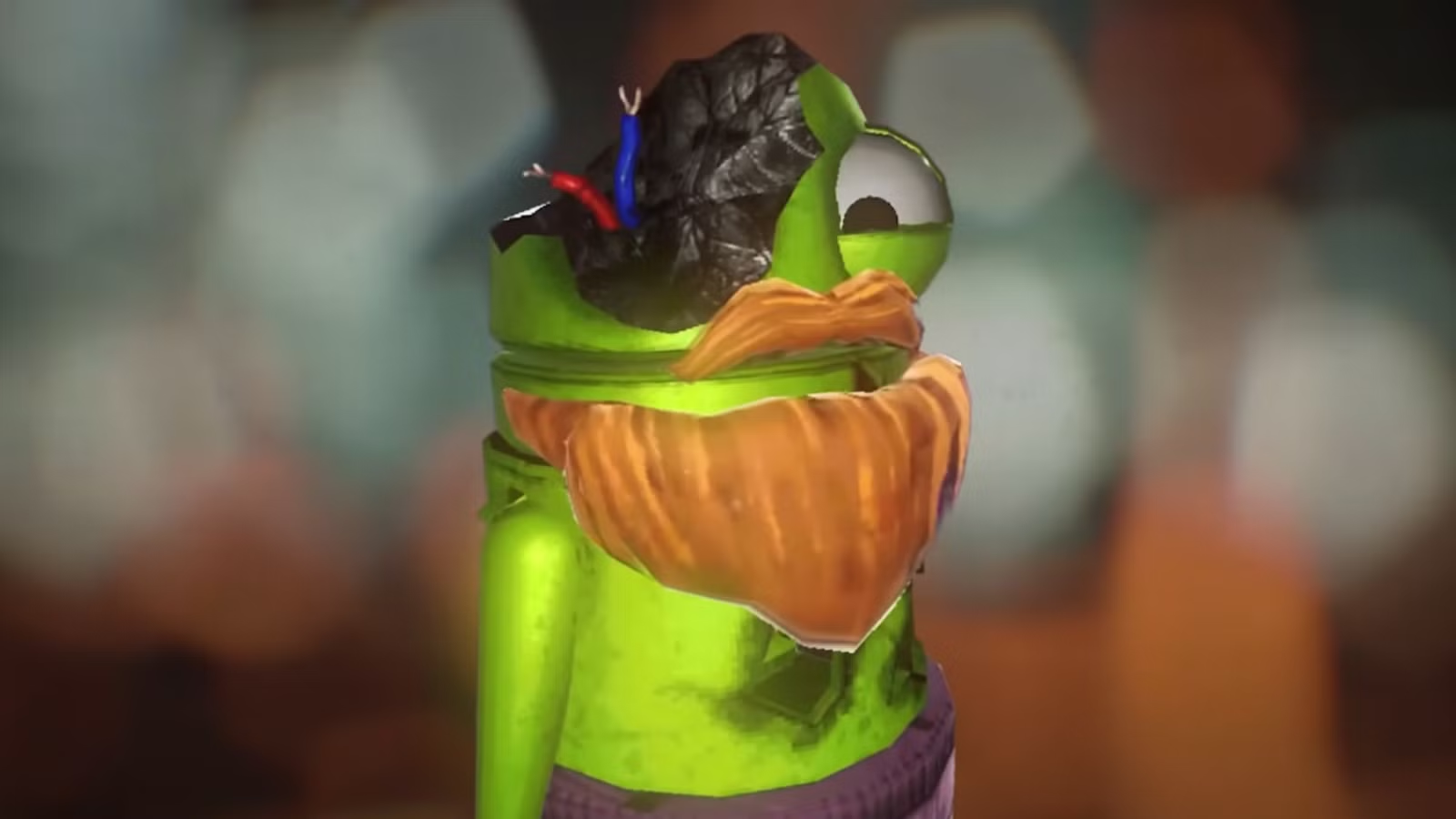
Cosmetics are about to become your favorite type of loot in REPO. Once you know where to find hats, bows, jackets, jeans, and bikinis for your robot, you’ll be the prettiest creature around — even if the Cleanup Crew spawns on your level. That said, cosmetics are rare, so you may be wondering when you’ll finally find one.
From a fancy mustache to a beautiful hamburger hat, here’s how to get cosmetics in REPO.
How to get cosmetics in REPO
To obtain cosmetics in REPO, you must find cosmetic boxes. Just like other items, they spawn randomly, so you’ll need a bit of luck to find one. In our experience, they’re very rare in the first three levels, but you’re quite likely to encounter them from level 4 upward. Cosmetic boxes appear as large square or rectangular items with a distinct, colorful glow. The glow indicates the cosmetic’s rarity level; green is common, blue is uncommon, purple is rare, and yellow is ultra-rare.

The rarer the cosmetic box, the larger its size, so ultra-rare cosmetic boxes are harder to carry than common cosmetic boxes. Cosmetic boxes will take damage if you drop them or bang them against a wall, but luckily, it’s possible to heal them. For example, the box below has taken two damage. Hold onto the hand icon on the side, and you will transfer your own HP to the cosmetic box (10 HP per tick).

To get a cosmetic reward, extract the cosmetic boxes along with your other loot. Instead of obtaining normal money, cosmetic boxes yield tax tokens that can be exchanged for randomized cosmetics in the shop. The tax token’s rarity will correspond with the cosmetic’s rarity level. Insert your tax tokens in the machine that has an image of the Taxman on it, as seen below.

To equip cosmetics, go to the main menu and choose “cosmetics.” Here you will find every cosmetic item you’ve discovered so far, divided into four categories: head, body, arms, and legs. Pick one and scroll down to see every sub-category, then click on any hat, shirt, or pants you’d like to wear.
Most cosmetics come in a variety of colors. To change their color, click the tiny palette icon in the upper right corner. You can also use the cosmetics menu to paint your robot — change its “skin,” if you will. To save your gorgeous new fit, simply click the “presets” tab at the top of the screen and choose an empty slot (or overwrite an old look).
About the Author